> ## Documentation Index
> Fetch the complete documentation index at: https://docs.hedera.com/llms.txt
> Use this file to discover all available pages before exploring further.
# Hedera Testnet Faucet
> Get free testnet HBAR by entering your EVM wallet address or Hedera account ID in the Hedera web faucet. No developer portal account required to fund a testnet account.
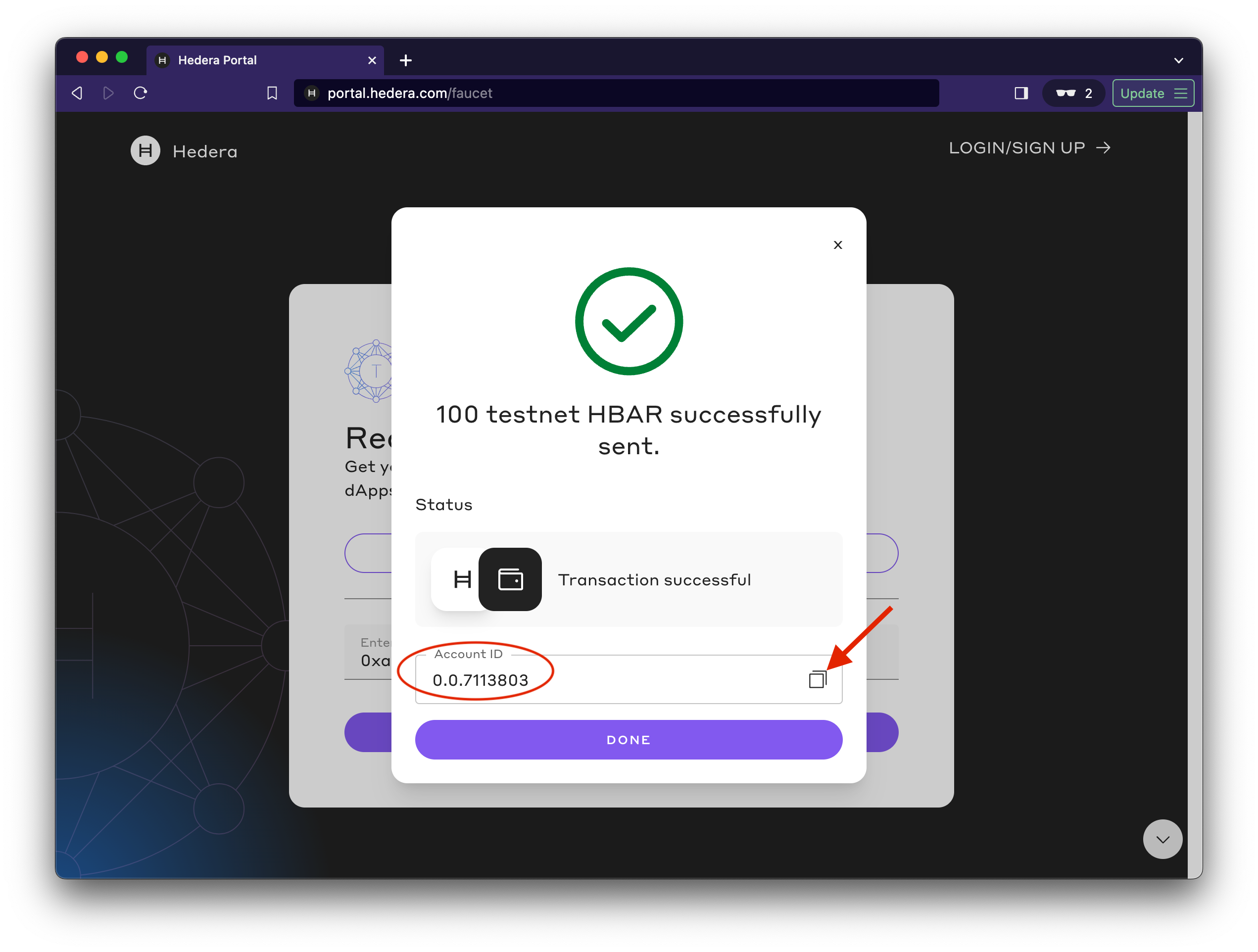
The Hedera faucet allows you to quickly create and fund a testnet account without creating a developer portal account. The faucet flow auto-creates an account when you enter an EVM wallet address to receive testnet HBAR.
Prefer the terminal? The [Faucet API](/learn/getting-started/faucet-api) funds testnet and previewnet accounts programmatically, ideal for scripts, CI pipelines, and agentic workflows.
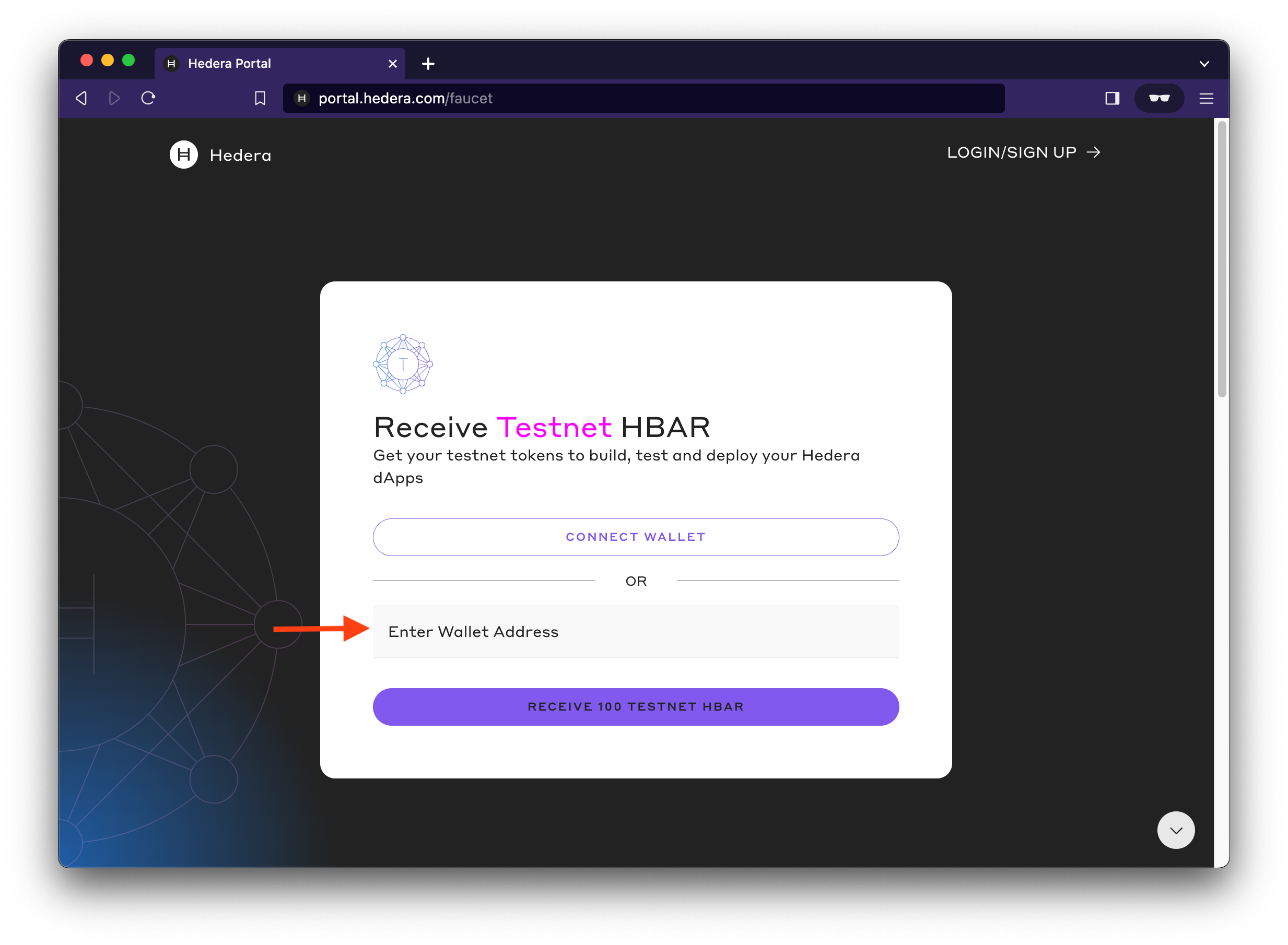
To use the faucet, head to the [faucet](https://portal.hedera.com/faucet) landing page.
* Enter your EVM wallet address in the **Enter Wallet Address** field and
* Click the **RECEIVE 100 TESTNET HBAR** button to initiate an [auto account creation](/learn/core-concepts/accounts/auto-account-creation) flow that creates and funds a new testnet account
#### ⚠️ **Important**
When you use an EVM wallet address for the first time, **Auto Account Creation** kicks in to establish a new Hedera account linked to your EVM address.
This process creates a **hollow account**, an account with an ID and alias but no key. Hollow accounts can receive HBAR and tokens, but it cannot transfer tokens from the account or modify any account properties until the account key has been added and the account is complete.
To complete the account, use it as the **fee payer** in a transaction and sign with the **ECDSA private key** tied to the EVM address. Once completed, the account works like any regular Hedera account.
 ## Environment Variable Setup (Optional)
This section is for developers who want to set up their environment for production use. If you plan to use Hardhat, Foundry, or other development frameworks, complete this step to configure your environment variable. Skip if you're just getting started.
If you plan to use Hardhat, Foundry, or other development frameworks, you'll want to set up environment variables:
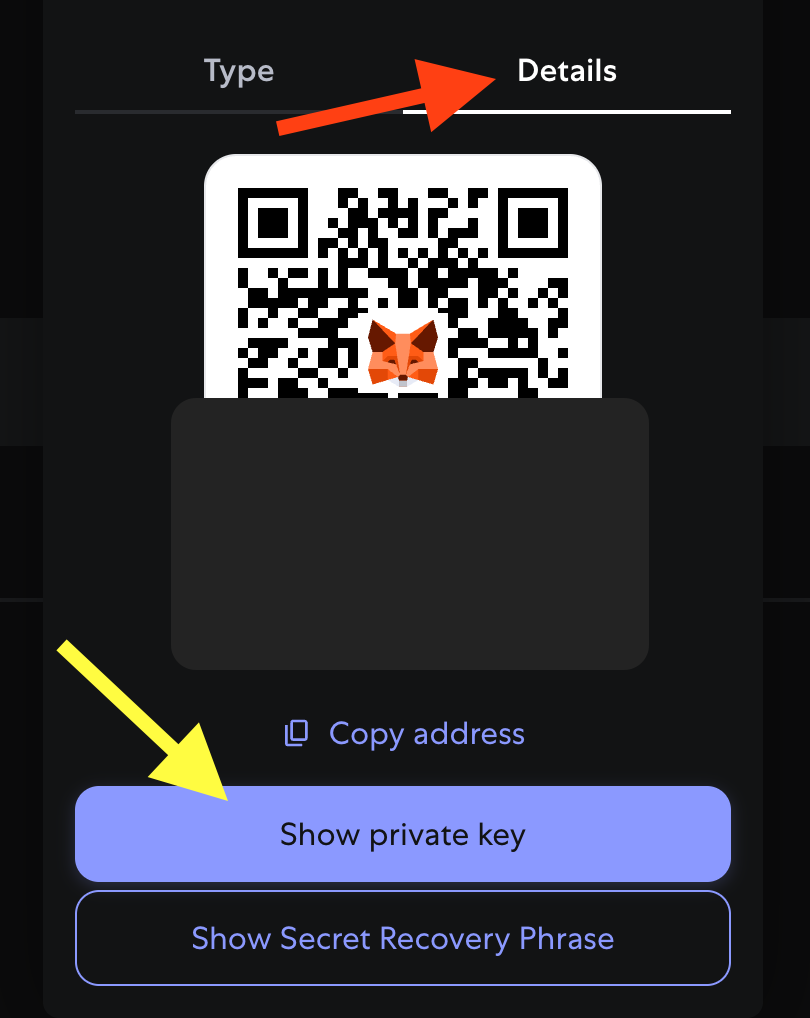
1. **Export your private key from MetaMask:**
1. Click the **three dots menu** → **Account details** → **Show private key**
2. Copy the private key (64-character hex string)
## Environment Variable Setup (Optional)
This section is for developers who want to set up their environment for production use. If you plan to use Hardhat, Foundry, or other development frameworks, complete this step to configure your environment variable. Skip if you're just getting started.
If you plan to use Hardhat, Foundry, or other development frameworks, you'll want to set up environment variables:
1. **Export your private key from MetaMask:**
1. Click the **three dots menu** → **Account details** → **Show private key**
2. Copy the private key (64-character hex string)
 For detailed instructions on exporting your private key, refer to [this how-to
guide](https://support.metamask.io/managing-my-wallet/secret-recovery-phrase-and-private-keys/how-to-export-an-accounts-private-key/).
Keep your private keys secure. Anyone with access to them can control your
wallet and any funds.
2. **Create a `.env` file** in your project directory with your account credentials
```
# private key exported from MetaMask
OPERATOR_KEY=0xc89f760d43832...
# new testnet account ID
OPERATOR_ID=0.0.1234
# Hedera testnet RPC endpoint
RPC_URL=https://testnet.hashio.io/api
```
#### Warning
Storing private keys in a `.env` file is not considered best practice. There is always a risk of accidentally committing and pushing to a public GitHub repo and exposing your keys. Make it a habit to add `.env` to your `.gitignore` file as a precautionary measure.
We **highly advise against** using a private key with mainnet funds.
## Next Step
* [Deploy a Smart Contract Using Remix](/evm/quickstart/deploy-with-remix)
* [Deploy your First Contract with Contract Builder](/evm/quickstart/deploy-with-contract-builder)
For detailed instructions on exporting your private key, refer to [this how-to
guide](https://support.metamask.io/managing-my-wallet/secret-recovery-phrase-and-private-keys/how-to-export-an-accounts-private-key/).
Keep your private keys secure. Anyone with access to them can control your
wallet and any funds.
2. **Create a `.env` file** in your project directory with your account credentials
```
# private key exported from MetaMask
OPERATOR_KEY=0xc89f760d43832...
# new testnet account ID
OPERATOR_ID=0.0.1234
# Hedera testnet RPC endpoint
RPC_URL=https://testnet.hashio.io/api
```
#### Warning
Storing private keys in a `.env` file is not considered best practice. There is always a risk of accidentally committing and pushing to a public GitHub repo and exposing your keys. Make it a habit to add `.env` to your `.gitignore` file as a precautionary measure.
We **highly advise against** using a private key with mainnet funds.
## Next Step
* [Deploy a Smart Contract Using Remix](/evm/quickstart/deploy-with-remix)
* [Deploy your First Contract with Contract Builder](/evm/quickstart/deploy-with-contract-builder)